Admin Assistant
Admin assistant builds a set of double-entry accounts from bank transaction data imported via OFX format transaction files or an Open Banking API.
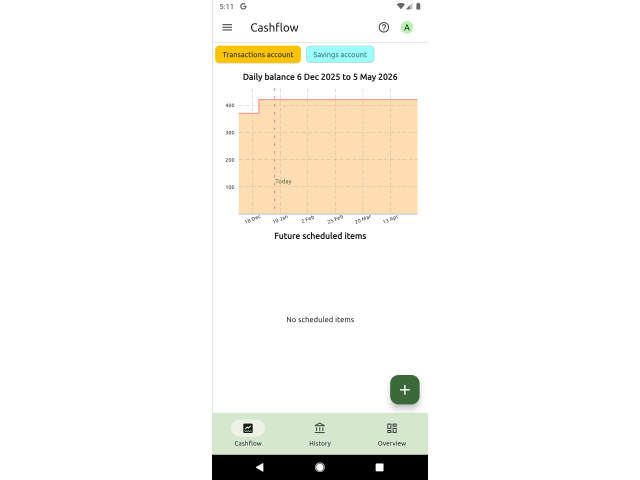
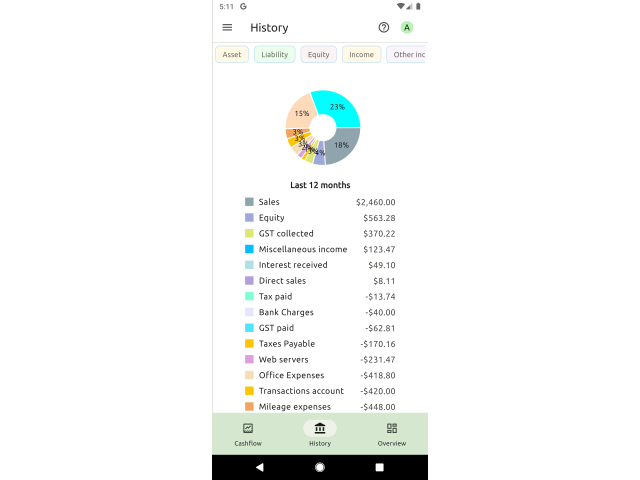
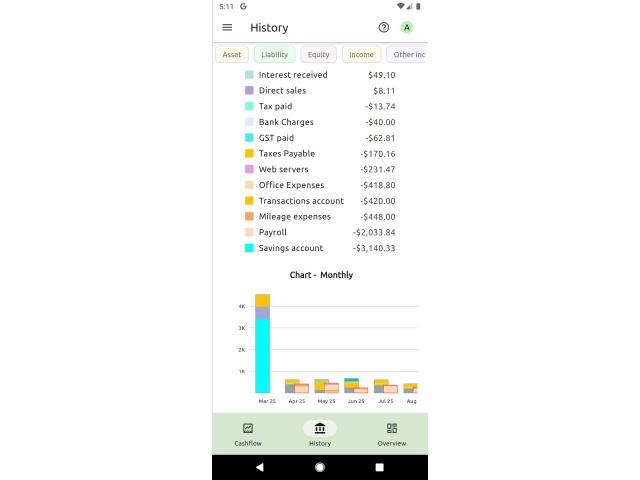
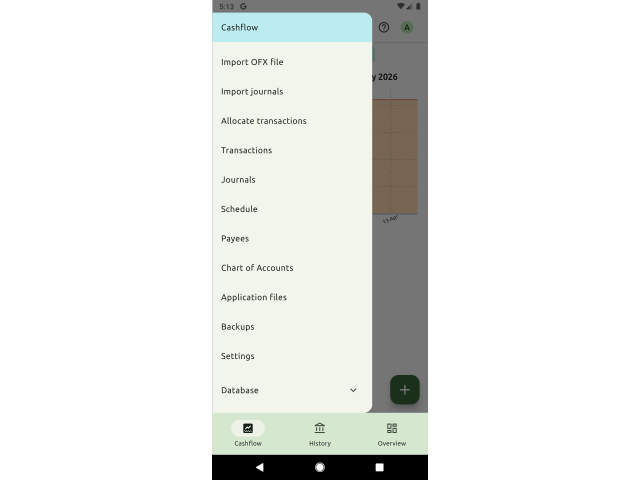
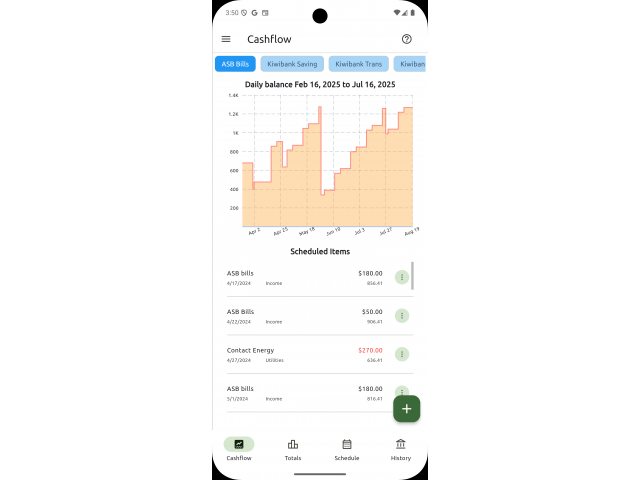
A cashflow graph shows future scheduled transactions for bank accounts; a history page shows a pie chart and totals summary of accounts by type with a month by month bar chart which can be selected for an individual account.
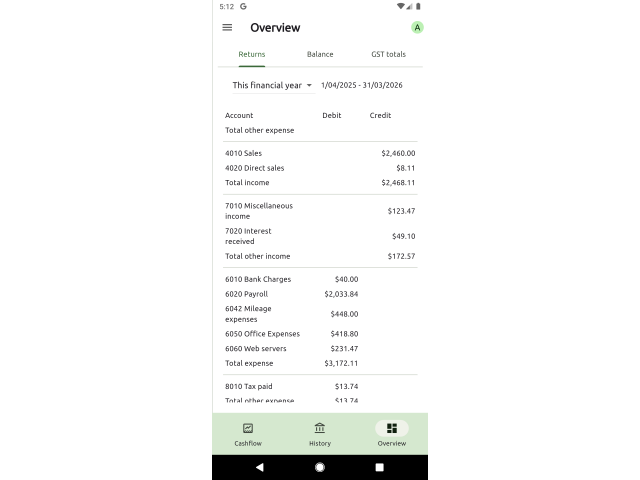
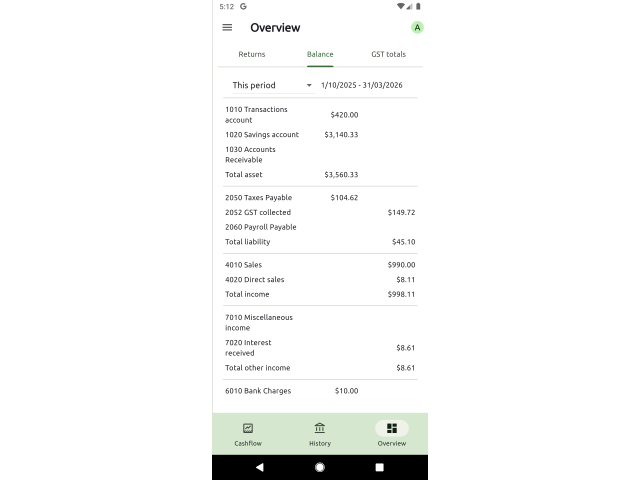
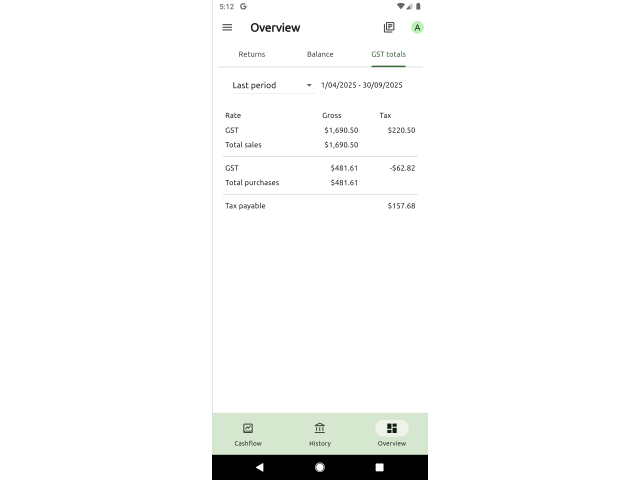
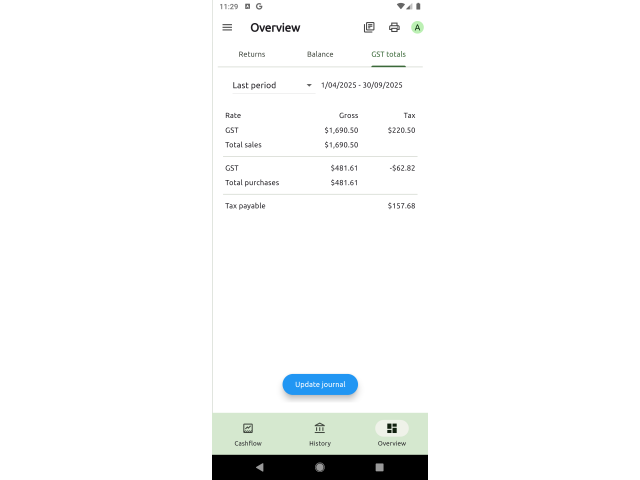
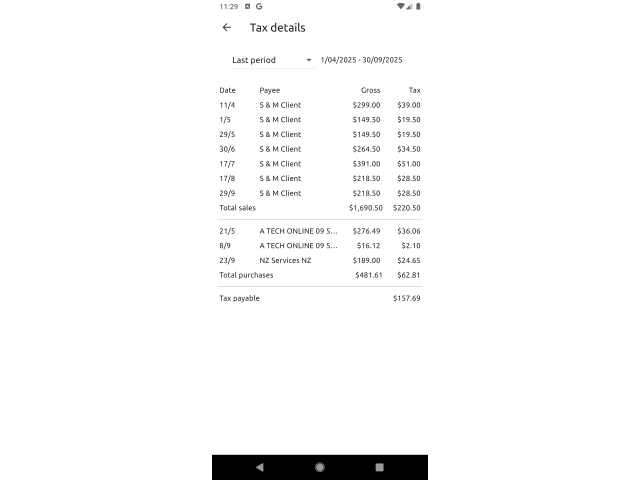
Finally, an overview page shows total returns (profit and loss summary), account balances with summary total by account type, and if a sales tax has been defined, totals of sales and purchases to support the production of a sales tax (VAT/GST) return. Printed reports are available for each set of totals as shown on the screen.
In the initial setup, the chart of accounts is populated with a default set of accounts based on a selected region.
Bank accounts can be created manually, or via import by OFX or Open Banking. Depending on the account type it will be given 1010 transaction account code, or 1020 savings account code, with the code incremented by one for each new bank account.
The account type (asset, liability, equity, income, other income, cost of goods, expense, other expense) conforms to standard accounting practice.
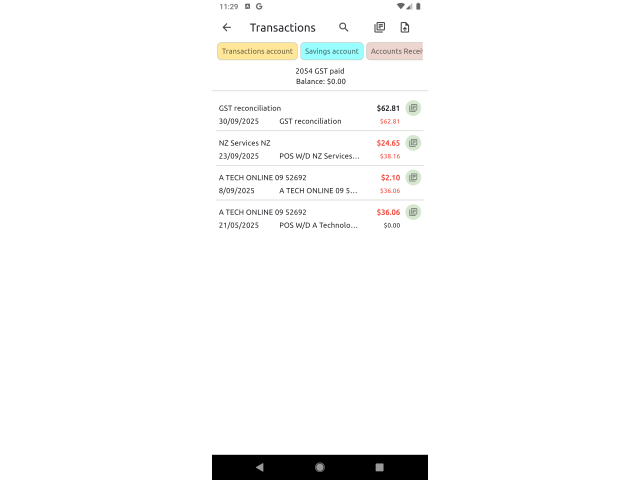
If an account has a associated tax code, tax will be calculated and subtracted from the bank transaction amount when that bank transaction is categorised. In that case, categorisation creates two contra transactions for the bank transaction: a net of tax item for the selected expense code, and a tax collected or paid transaction for the tax amount, depending on whether the destination account is a revenue account or expense account.
There are three basic types of transactions in the application:
- imported bank transactions, with a type of DEBIT or CREDIT.
- contra transactions are created by categorising bank transactions. There can be one or two contra transactions for each bank transaction depending on if the categorisation account has a tax code or not.
- journal transactions are balanced sets of transactions that can be imported from applications such as invoicing or payroll, or created within the admin application.
Bank transactions are assigned a payee automatically when they are imported by matching the transaction payee name with a saved payee name. Matching on payee name will generate the one or two contra transactions, depending if the destination account has a tax code.
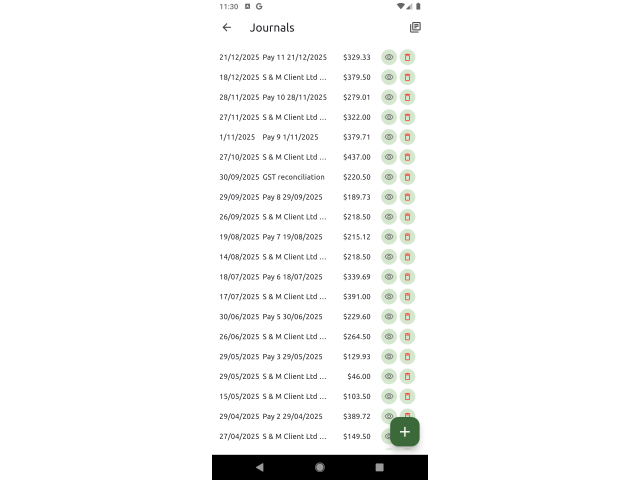
A record of each journal imported from external applications or entered in admin is saved in the journal table. When that record is created, corresponding journal transactions are created in the transactions table, one transaction per journal line. No tax transactions are created from journals, regardless of the destination account for the journal line.
As an aid to entering journals in admin, a set of journal templates are provided to indicate how debits and credits should be entered for a variety of specific purposes: opening balances for bank accounts, customer or supplier invoices and GST/VAT reconciliation.
A payee record is created when bank transactions are categorised and linked to specific ledger accounts. If a future bank transaction is imported with the same payee, it is categorised automatically. Payees can be edited and a pattern set so the payee can be matched with a sub-string of the bank transaction payee. e.g. a pattern of woolworth will match with any bank transaction that has woolworth in any part of the payee name.
If a payee is deleted, any bank transaction with that payee is uncategorised, and re-matched against all remaining payees to be automatically categorised.
If bank transactions are not available in OFX file format or via Open Banking, they can be imported by CSV format file. In that case, a CSV template has to be created that specifies which column in the CSV file contains what transaction field. A template has to identify a date, payee and amount at a minimum.
All data is stored locally under your complete control and is not accessible by anyone else. Normally you'd need only a single database, but you can create separate databases for different organisations. There is a backup facility, and you have the option of sharing a backup file if needed.
Data can be synchronised across multiple devices of any type, enabling you to use a Windows or Linux machine as a master, backup automatically to Google Drive when any change is made to data, and then for the latest backup to be restored to any other device, desktop, mobile or tablet automatically when the application is opened on that device. For a more detailed explanation on how to set up synchronisation, see: https://asrosoft.com/app-device-sync-p30